
On this page
Stop Wasting Minutes on Every Build — Use This Self-Hosted Runner Setup

Introduction
After migrating from Jenkins to GitHub Actions, we ran into two problems. First, we needed self-hosted runners to deploy to private servers across multiple clouds. Second, our build times were actually slower than Jenkins — GitHub-hosted runners start fresh every run, so there was no Docker layer cache, and every build pulled and rebuilt everything from scratch.
We solved both by running multiple self-hosted runners as Docker containers on a single EC2 instance using Docker Compose. Each runner uses a custom image with pre-installed tooling (AWS CLI, gcloud, kubectl), shares the host's Docker daemon for builds, and persists its registration credentials across container restarts using mounted volumes.
The result was a 6x reduction in build times compared to GitHub-hosted runners, primarily from shared Docker layer caching across all runners on the same node.
This guide walks through the full setup: building the custom runner image, solving the credential persistence problem that comes with containerized runners, configuring Docker Compose for multi-runner deployment, and leveraging the shared Docker host for caching.
Architecture Overview
The setup runs five GitHub Actions runner containers on a single EC2 instance, all managed by Docker Compose. Each runner registers as an org-level self-hosted runner with unique labels for job targeting.
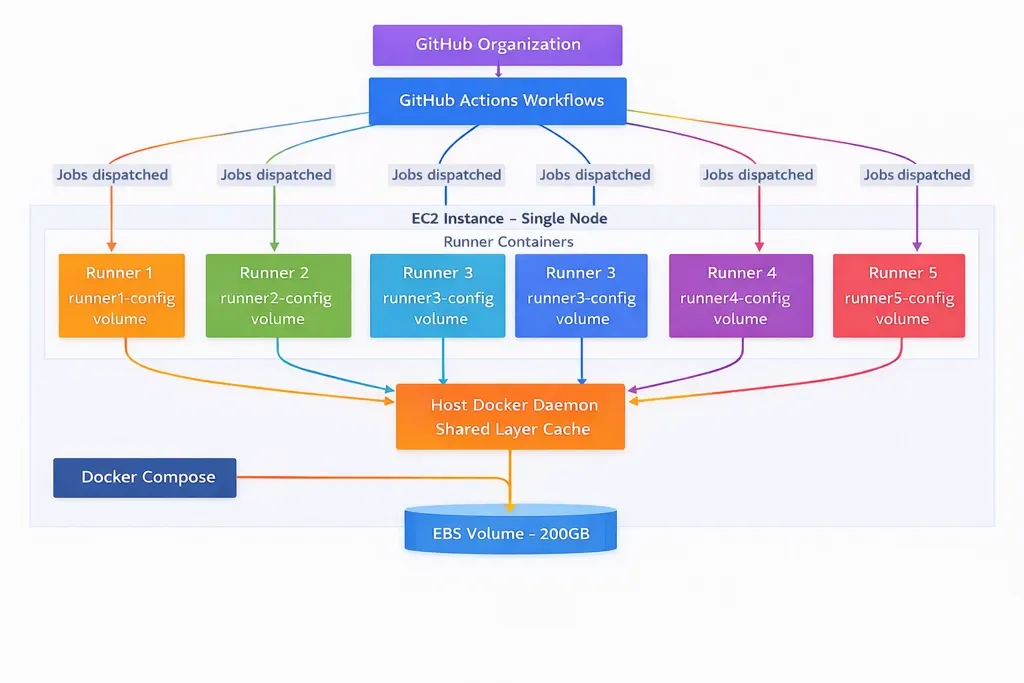
Why one node with multiple runners instead of one runner per node?
When you are running a lot of jobs across multiple workflows, you need multiple runners. Provisioning a separate EC2 instance for each runner adds significant overhead — more infrastructure to manage, more automation to write, more cost. A single larger instance running five runner containers via Docker Compose gives you the same parallelism with far less operational complexity. You manage one node, one Docker Compose file, and one set of infrastructure.
The tradeoff is clear: this is a single point of failure. If the node goes down, all five runners go down. For our use case, this was acceptable — the node can be replaced quickly, and the runners re-register automatically using persisted credentials. The cost and operational savings outweighed the SPOF risk.
Step-by-Step Implementation
Step 1: Custom Runner Docker Image
The official GitHub Actions runner image (ghcr.io/actions/actions-runner) is minimal. Every workflow that needs AWS CLI or kubectl would have to install them at the start of each job, adding minutes to every run. Instead, we bake all required tooling into a custom image so runners are ready to go the moment they pick up a job.
FROM ghcr.io/actions/actions-runner:latest

# Switch to root to install packages
USER root

# Install dependencies and tools
RUN apt-get update && \
    apt-get install -y curl python3 python3-pip sudo unzip && \
    apt-get clean && \
    rm -rf /var/lib/apt/lists/*

# Install AWS CLI v2
RUN curl "https://awscli.amazonaws.com/awscli-exe-linux-x86_64.zip" -o "awscliv2.zip" && \
    unzip awscliv2.zip && \
    ./aws/install && \
    rm -rf awscliv2.zip aws/

# Install jq and Docker CLI for JSON parsing and Docker-in-Docker builds
RUN apt-get update && \
    apt-get install -y jq docker.io && \
    apt-get clean && \
    rm -rf /var/lib/apt/lists/*

# Add runner user to docker group to access the Docker socket
RUN usermod -aG docker runner

# Copy custom entrypoint script
COPY entrypoint.sh /home/runner/entrypoint.sh
RUN chown runner:runner /home/runner/entrypoint.sh && chmod +x /home/runner/entrypoint.sh

# Switch back to runner user
USER runner

# Set working directory
WORKDIR /home/runner

# Create config directory with proper permissions
RUN mkdir -p /home/runner/_config && chown runner:runner /home/runner/_config

# Verify installations
RUN aws --version && jq --version

# Use custom entrypoint
ENTRYPOINT ["./entrypoint.sh"]
Build and push this image to your private container registry (ECR, GCR, etc.):
docker build -t <your-registry>/github-runner:latest -f Dockerfile .
docker push <your-registry>/github-runner:latest
Add or remove tools based on what your workflows need. The goal is to eliminate runtime installations — anything your jobs use regularly should be in the image.
Step 2: Solving the Credential Persistence Problem
This is the problem that isn't well documented and caught us off guard.
How GitHub runner registration works:
- You generate a one-time registration token from GitHub (Settings > Actions > Runners)
- The runner uses this token to register itself with GitHub via
config.sh - During registration, the runner generates RSA credentials (
.runner,.credentials,.credentials_rsaparams) and stores them locally - These credentials are what the runner uses for all future communication with GitHub
- The one-time token expires after 1 hour — it is only needed for initial registration
The problem with containers:
When the runner runs inside a Docker container, those credential files live inside the container filesystem. If the container restarts — due to a security patch, a Docker daemon update, or a node reboot — those credentials are gone. The runner cannot re-register because the one-time token has already expired.
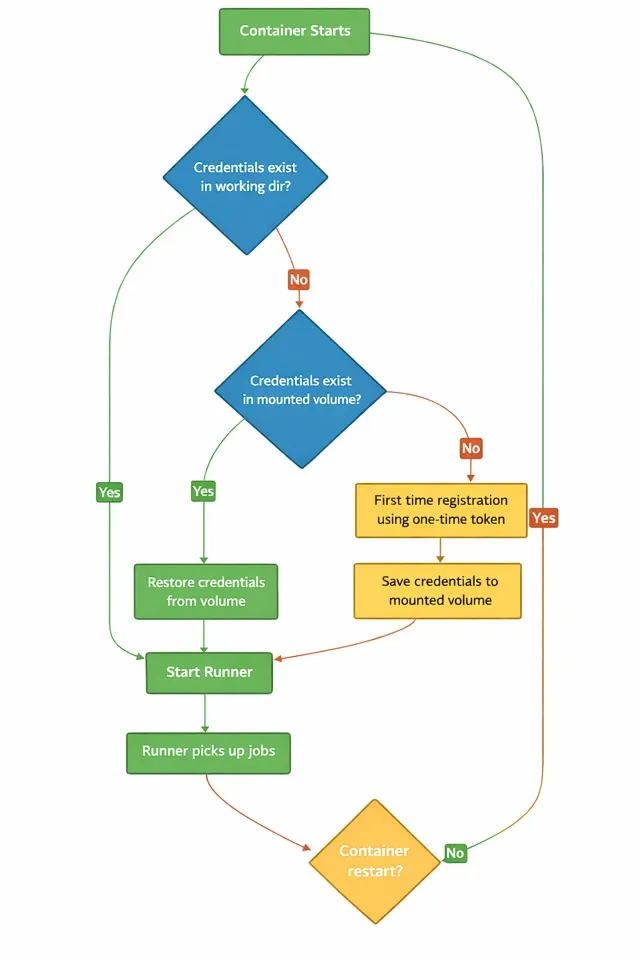
The solution:
Mount a Docker volume for each runner container and persist the credential files to it. The custom entrypoint script handles three scenarios:
- First run: Register with the one-time token, save credentials to the mounted volume
- Restart with credentials in working directory: Start directly
- Restart after container recreation: Restore credentials from the mounted volume, then start.
#!/bin/bash
set -e

CONFIG_DIR="/home/runner/_config"

# Fix Docker socket permissions if mounted
if [ -S /var/run/docker.sock ]; then
  echo "Fixing Docker socket permissions..."
  sudo chmod 666 /var/run/docker.sock
fi

# Function to save credentials to persistent storage
save_credentials() {
  echo "Saving credentials to ${CONFIG_DIR}..."
  mkdir -p "${CONFIG_DIR}"
  if [ -f ".runner" ]; then
    cp .runner "${CONFIG_DIR}/" && echo "Saved .runner"
  fi
  if [ -f ".credentials" ]; then
    cp .credentials "${CONFIG_DIR}/" && echo "Saved .credentials"
  fi
  if [ -f ".credentials_rsaparams" ]; then
    cp .credentials_rsaparams "${CONFIG_DIR}/" && echo "Saved .credentials_rsaparams"
  fi
}

# Check if already configured in current directory
if [ -f ".runner" ]; then
  echo "Runner already configured, starting..."
# Restore runner config from persistent volume if it exists
elif [ -f "${CONFIG_DIR}/.runner" ]; then
  echo "Restoring runner configuration from persistent storage..."
  cp "${CONFIG_DIR}/.runner" .
  cp "${CONFIG_DIR}/.credentials" .
  cp "${CONFIG_DIR}/.credentials_rsaparams" .
else
  # First time registration - configure the runner
  echo "Registering runner for the first time..."
  ./config.sh \
    --url "${REPO_URL}" \
    --token "${RUNNER_TOKEN}" \
    --name "${RUNNER_NAME}" \
    --work "${RUNNER_WORKDIR:-/home/runner/work}" \
    --labels "${LABELS:-self-hosted}" \
    --unattended \
    --replace

  # Persist the configuration to the volume
  echo "Saving runner configuration to persistent storage..."
  save_credentials
fi

# Save credentials periodically in background
(
  while true; do
    sleep 300  # Save every 5 minutes
    save_credentials
  done
) &

# Trap to save credentials on exit
trap save_credentials EXIT SIGTERM SIGINT

# Start the runner
./run.sh
The background save loop (every 5 minutes) and the exit trap ensure credentials are persisted even if the runner binary updates the credential files during its lifecycle.
Security note: These persisted credentials can only be used for runner registration — they don't provide access to repository content, secrets, or any GitHub API endpoints. Even if they were compromised, the blast radius is limited to registering a runner.
Step 3: Docker Compose Multi-Runner Setup
With the image built and the entrypoint script handling credential persistence, the Docker Compose file ties everything together. Each runner gets:
- A unique name and work directory
- Its own config volume for credential persistence
- Access to the host Docker socket
- Labels for job targeting in workflows
services:
  runner1:
    image: <your-registry>/github-runner:latest
    environment:
      - REPO_URL=${REPO_URL}
      - RUNNER_TOKEN=${RUNNER_TOKEN}
      - RUNNER_NAME=aws-${PRODUCT}-${ENV}-runner-1
      - RUNNER_WORKDIR=/home/runner/work1
      - LABELS=self-hosted,aws-${PRODUCT}-${ENV},runner1
      - DOCKER_HOST=unix:///var/run/docker.sock
    restart: unless-stopped
    volumes:
      - runner1-config:/home/runner/_config
      - /var/run/docker.sock:/var/run/docker.sock

  runner2:
    image: <your-registry>/github-runner:latest
    environment:
      - REPO_URL=${REPO_URL}
      - RUNNER_TOKEN=${RUNNER_TOKEN}
      - RUNNER_NAME=aws-${PRODUCT}-${ENV}-runner-2
      - RUNNER_WORKDIR=/home/runner/work2
      - LABELS=self-hosted,aws-${PRODUCT}-${ENV},runner2
      - DOCKER_HOST=unix:///var/run/docker.sock
    restart: unless-stopped
    volumes:
      - runner2-config:/home/runner/_config
      - /var/run/docker.sock:/var/run/docker.sock

  runner3:
    image: <your-registry>/github-runner:latest
    environment:
      - REPO_URL=${REPO_URL}
      - RUNNER_TOKEN=${RUNNER_TOKEN}
      - RUNNER_NAME=aws-${PRODUCT}-${ENV}-runner-3
      - RUNNER_WORKDIR=/home/runner/work3
      - LABELS=self-hosted,aws-${PRODUCT}-${ENV},runner3
      - DOCKER_HOST=unix:///var/run/docker.sock
    restart: unless-stopped
    volumes:
      - runner3-config:/home/runner/_config
      - /var/run/docker.sock:/var/run/docker.sock

  runner4:
    image: <your-registry>/github-runner:latest
    environment:
      - REPO_URL=${REPO_URL}
      - RUNNER_TOKEN=${RUNNER_TOKEN}
      - RUNNER_NAME=aws-${PRODUCT}-${ENV}-runner-4
      - RUNNER_WORKDIR=/home/runner/work4
      - LABELS=self-hosted,aws-${PRODUCT}-${ENV},runner4
      - DOCKER_HOST=unix:///var/run/docker.sock
    restart: unless-stopped
    volumes:
      - runner4-config:/home/runner/_config
      - /var/run/docker.sock:/var/run/docker.sock

  runner5:
    image: <your-registry>/github-runner:latest
    environment:
      - REPO_URL=${REPO_URL}
      - RUNNER_TOKEN=${RUNNER_TOKEN}
      - RUNNER_NAME=aws-${PRODUCT}-${ENV}-runner-5
      - RUNNER_WORKDIR=/home/runner/work5
      - LABELS=self-hosted,aws-${PRODUCT}-${ENV},runner5
      - DOCKER_HOST=unix:///var/run/docker.sock
    restart: unless-stopped
    volumes:
      - runner5-config:/home/runner/_config
      - /var/run/docker.sock:/var/run/docker.sock

volumes:
  runner1-config:
  runner2-config:
  runner3-config:
  runner4-config:
  runner5-config:
The .env file provides the shared configuration:
# GitHub Organization URL
REPO_URL=https://github.com/<org-name>

# GitHub Runner Registration Token (get from GitHub Settings > Actions > Runners)
RUNNER_TOKEN=<org-level-token-here>

# Product identifier
PRODUCT=prod1

# Environment: qa or prod
ENV=prod
Start all runners with:
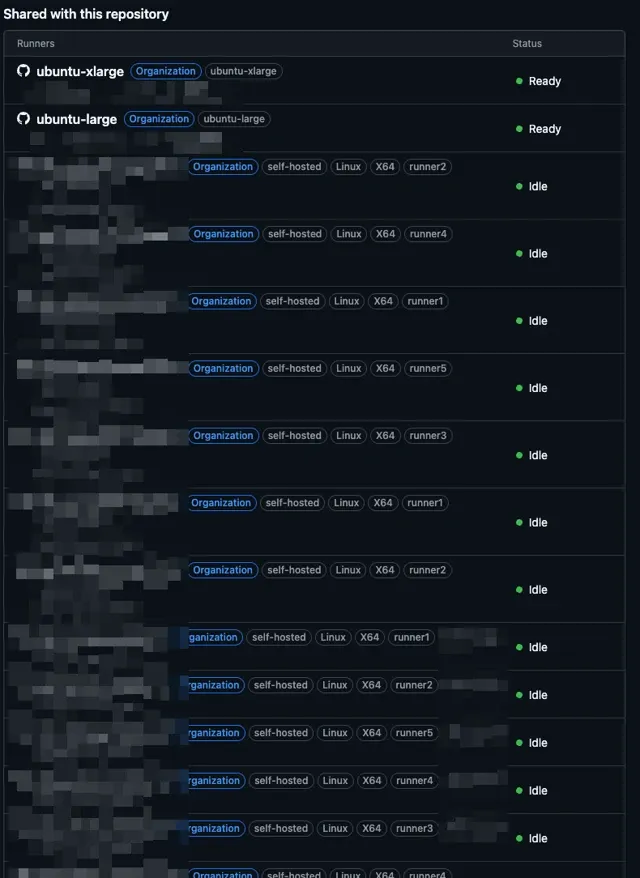
docker compose --env-file .env up -dAfter the first start, you can verify the runners are registered in GitHub under Settings > Actions > Runners. Each runner will show up with its unique name (e.g., aws-prod1-prod-runner-1) and assigned labels.
About the Docker socket mount:
Every runner container mounts /var/run/docker.sock from the host. This allows workflows to run Docker commands (build, push, etc.) using the host's Docker daemon. The entrypoint script sets chmod 666 on the socket so the runner user can access it.
This does give runner containers privileged access to the host Docker daemon. For our setup, this is an acceptable tradeoff because:
- All repositories are private with trusted contributors only
- The EC2 instance's IAM role has minimal permissions — just enough to pull images from ECR
- Even with Docker socket access, there is nothing meaningful to escalate to on the host
If you are running runners for public repositories or untrusted contributors, do not use this approach. Consider rootless Docker or dedicated build tools like Kaniko instead.
Step 4: Caching via Shared Docker Host
This is where the 6x build time improvement comes from.
All five runner containers share the same host Docker daemon through the mounted socket. When any runner builds a Docker image, the layers are cached in the host's Docker storage. The next build — on any runner — reuses those cached layers.
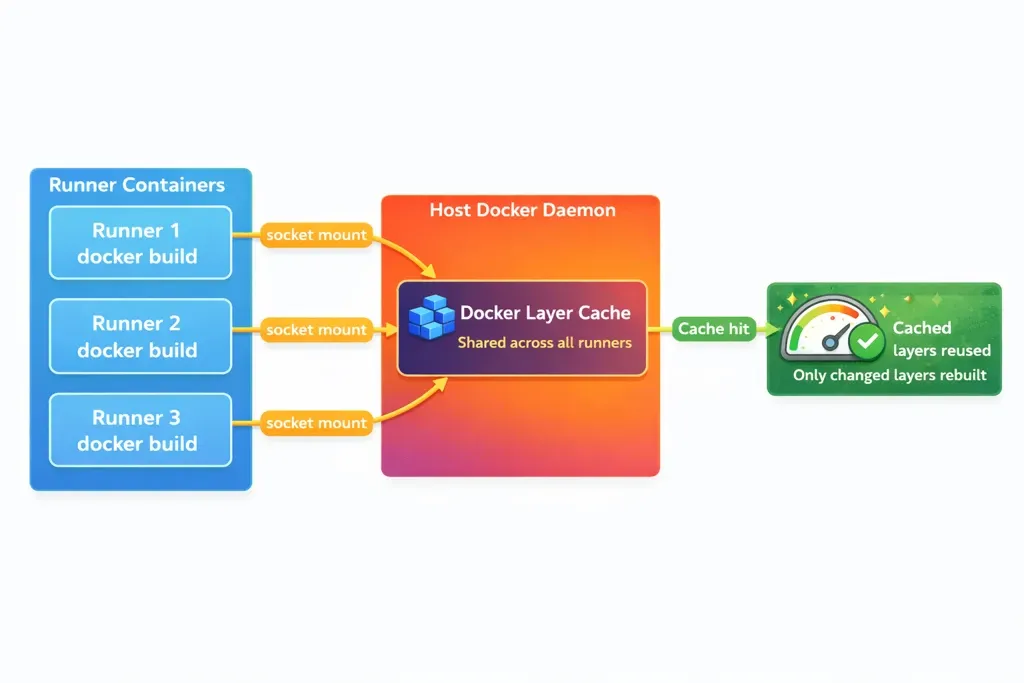
With GitHub-hosted runners, every job starts on a fresh VM with an empty Docker cache. Every docker build pulls base images and rebuilds all layers from scratch. With self-hosted runners sharing the host daemon, only the layers that actually changed get rebuilt.
In your GitHub Actions workflow, use the Docker docker driver (the default) which uses the local Docker daemon and its cache:
- name: Build and push Docker image
  uses: docker/build-push-action@v5
  with:
    context: .
    push: true
    tags: ${{ env.ECR_REGISTRY }}/${{ env.ECR_REPOSITORY }}:${{ github.sha }}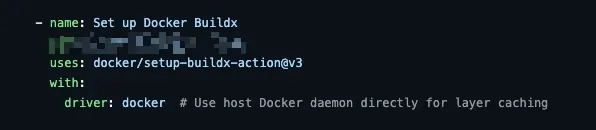
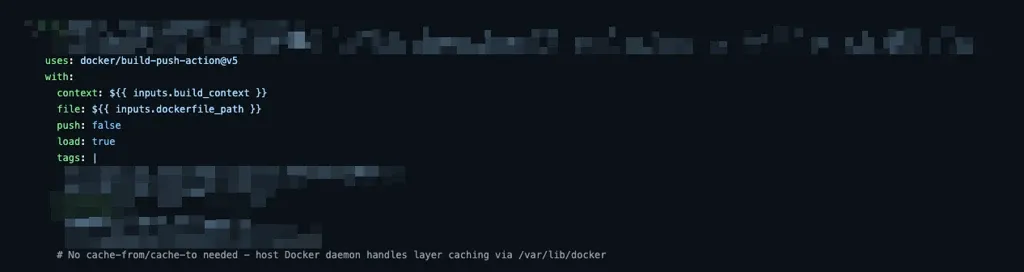
No special cache configuration is needed. Because the runner is using the host Docker daemon via the mounted socket, BuildKit automatically uses the local layer cache. This is the simplest and most effective caching approach — no remote cache backends, no registry-based caching, no actions/cache setup.
Disk management:
Since all runners share one Docker storage directory on the host, disk usage grows over time. We use a 200GB EBS volume and run a scheduled cleanup to prune unused images and build cache when disk usage exceeds a threshold:
# Prune Docker resources when disk usage exceeds 75%
USAGE=$(df /var/lib/docker --output=pcent | tail -1 | tr -d ' %')
if [ "$USAGE" -gt 75 ]; then
  docker system prune -af --filter "until=72h"
fi
Conclusion
Running multiple self-hosted GitHub Actions runners on a single node with Docker Compose is a practical approach when you have many parallel jobs, need to deploy to private infrastructure, and want fast builds through shared Docker layer caching.
The key pieces that make this work:
- Pre-baked tooling in the runner image eliminates per-job installation overhead
- Credential persistence via mounted volumes keeps runners alive across container restarts without needing to re-register with a new token
- Shared Docker socket enables all runners to use the host's layer cache, which is where the build time improvements come from
The approach works well for private repositories with trusted teams. It trades some isolation for simplicity and speed — a tradeoff that makes sense when your priority is running a high volume of jobs without the overhead of managing individual runner nodes.
KubeNine Consulting helps teams design and implement CI/CD infrastructure for multi-cloud deployments. We've set up self-hosted runner architectures for organizations running hundreds of jobs per day across private infrastructure. Visit kubenine.com to learn how we can help streamline your build and deployment pipelines.